

Introduction
How to Set Up Tracking with Google Tag Manager is one of the most important skills for anyone running a website or doing digital marketing. Google Tag Manager (GTM) is a free tool by Google that helps you manage and deploy tracking codes (called tags) on your website without directly editing the code every time.
Setting up proper tracking is crucial because it allows you to understand how users interact with your website, which pages they visit, and what actions they take. This data helps improve marketing performance, optimize conversions, and make better business decisions.
In this guide, you will learn a complete Google Tag Manager setup step by step process, along with practical examples of tracking events and conversions. Whether you are a beginner or just starting with analytics, this tutorial will make everything simple and easy to follow.
The best part is that this is a beginner-friendly guide with no heavy coding required, so you can set everything up even if you have zero technical experience.
What is Google Tag Manager?
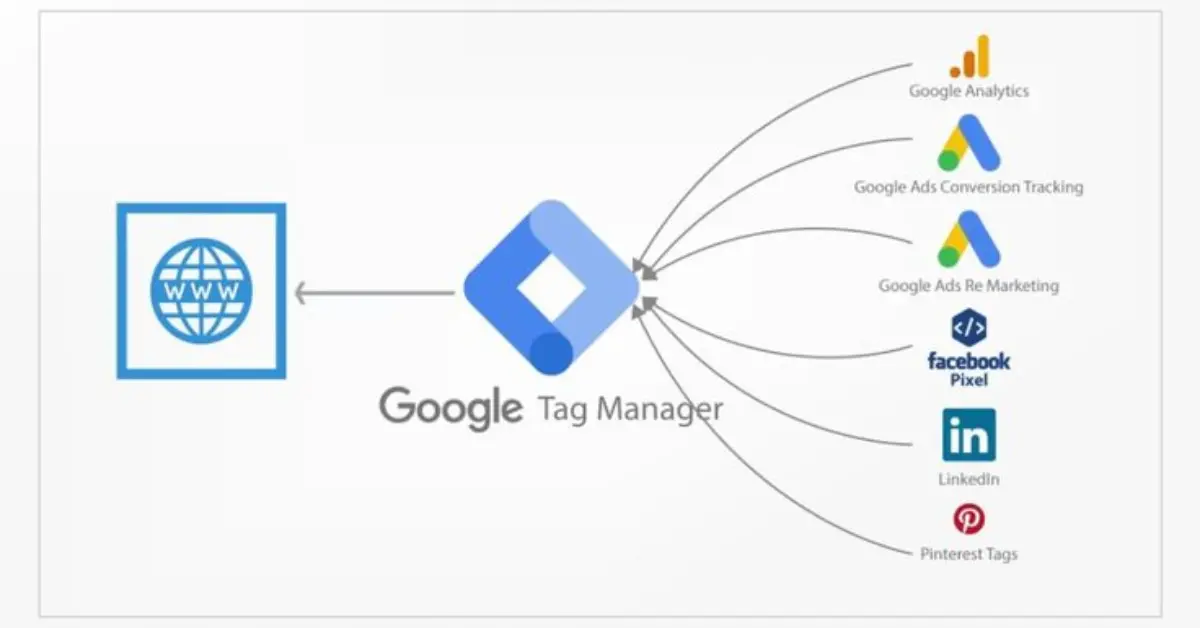
Google Tag Manager (GTM) is a free tool by Google that helps you manage and deploy tracking codes on your website without editing the code directly. In simple terms, it works as a central container where all your tracking scripts are stored. GTM uses tags, triggers, variables, and a container to control how and when tracking data is collected. Instead of manually adding code, you can manage everything from one dashboard. This makes it easier, faster, and more accurate. It is highly useful for marketers and website owners because it saves time, reduces errors, and improves tracking efficiency.
How Google Tag Manager Works
Google Tag Manager (GTM) works by using a simple system of tags, triggers, variables, and a container to manage all tracking on your website without editing code.
Tags are small pieces of code used for tracking specific actions. For example, you can use tags for Google Analytics 4 (GA4), Facebook Pixel, or Google Ads conversion tracking.
Triggers decide when a tag should fire. For example, a tag can fire when a user visits a page, clicks a button, or submits a form.
Variables provide extra information for tracking, such as page URL, click text, or user behavior data, making tracking more precise.
All these components are stored inside a GTM container, which is installed once on your website. The container acts like a central hub that controls all tags and tracking settings from one place, making website tracking simple and efficient.
Google Tag Manager Setup Step by Step
To start Google Tag Manager setup step by step, first go to the GTM website and create your account. After that, set up a new container for your website and choose the platform like Web, iOS, or Android depending on your needs.
Next, install GTM on your website by copying the provided head and body code and pasting it into your site. This can be done easily in platforms like WordPress, Shopify, or custom websites.
Finally, verify the installation using Tag Assistant or Preview mode to ensure GTM is working correctly and tracking is active.
You may also read this:
👉 The 12 Best Analytics Blogs (Crazy Egg Guide)
👉 Warmforge AI Blog – Email Deliverability & Cold Outreach Insights
👉 How to Tag Blog Posts for SEO – Complete Guide (UsePattern)
👉 Datos Insights Blog – Financial Services & Analytics Research
👉 Blog Analytics Guide: How to Use Data to Improve Your Strategy – HostAdvice
How to Add Tags in Google Tag Manager
Adding tags in GTM is a key part of How to add tags in Google Tag Manager because tags help you track user actions on your website. To create your first tag, go to GTM dashboard and click “New Tag,” for example, a Google Analytics 4 (GA4) tag for tracking website traffic.
Next, choose a tag type such as GA4, Google Ads conversion tracking, or Custom HTML for advanced tracking scripts. After that, set up triggers that decide when the tag will fire, like page views, button clicks, or form submissions.
Finally, click submit to publish your changes. GTM also keeps version control, so you can track all updates and revert if needed.
GTM Tracking Tutorial for Beginners
This GTM tracking tutorial for beginners explains how to track real user actions in a simple way. For example, if you want to track a button click like “Buy Now,” you can do it easily using Google Tag Manager. First, create a new tag in GTM and select the appropriate tag type, such as Google Analytics 4 event tracking.
Next, set up a trigger for the button click by choosing a click-based trigger and defining the button element. Once everything is set, save your tag and use Preview mode to test if the tracking is working correctly on your website before publishing.
Beginners often make mistakes like not testing in preview mode, selecting wrong triggers, or forgetting to publish changes. Avoiding these errors ensures accurate tracking. With practice, GTM becomes a powerful and easy tool for tracking user behavior and improving website performance.
Event Tracking Setup in Google Tag Manager
Event tracking setup in Google Tag Manager helps you measure important user actions on your website, such as clicks, scrolls, downloads, and form submissions. These actions are called events, and they show how users interact with your content beyond just page views.
What are Events in GTM?
Events in GTM include actions like button clicks, page scrolls, file downloads, and form submissions. These help you understand user behavior in detail.
Setting Up Click Tracking
To track clicks, first create a click trigger in GTM. Then configure event parameters to capture details like button name or link URL.
Scroll Tracking Setup
Scroll tracking measures how far users scroll on a page. You can set scroll depth tracking (e.g., 25%, 50%, 75%, 100%) to analyze engagement.
Form Submission Tracking
For lead generation, set up a form submission trigger. This helps track when users submit contact or signup forms, improving conversion insights.
Best Practices for Google Tag Manager Setup
To get the best results from Google Tag Manager setup, it is important to follow some key practices. Always keep naming conventions consistent so tags, triggers, and variables are easy to identify. Use folders for organization to manage different campaigns or tracking types in a structured way. Before publishing any changes, always test using Preview mode to avoid errors on your live website. Make sure to avoid duplicate tags, as they can lead to incorrect or inflated data. Lastly, always document your changes so you can track updates and easily troubleshoot issues in the future.
Common Mistakes to Avoid in GTM
When working with Google Tag Manager, many beginners make mistakes that can affect tracking accuracy. One common issue is wrong trigger setup, where tags fire at the wrong time or don’t fire at all, leading to incorrect data. Another major mistake is not using Preview mode, which prevents you from testing tags before publishing them on a live website. This can cause tracking errors that are hard to fix later.
A frequent problem is duplicate analytics tracking, where the same tag is fired multiple times, resulting in inflated or misleading data. Another mistake is missing conversion validation, meaning users set up conversion tracking but never test if it is working properly. This can lead to lost or incorrect conversion data.
Avoiding these mistakes ensures your Google Tag Manager tracking setup remains accurate, reliable, and effective for better marketing decisions.
Conclusion
Setting up tracking with Google Tag Manager is essential for understanding how users interact with your website and improving overall marketing performance. A proper GTM tracking setup helps you collect accurate data without needing to edit code repeatedly, making it both efficient and reliable.
Learning how to use GTM is highly valuable for marketing success because it allows you to track user behavior, measure conversions, and optimize campaigns based on real insights. With tools like tags, triggers, and events, you gain full control over your website analytics.
By following the steps covered in this guide, you can confidently implement tracking, avoid common mistakes, and build a strong data-driven marketing system.
FAQs About Google Tag Manager
1. What is Google Tag Manager used for?
Google Tag Manager is used to manage and deploy tracking codes (tags) on a website without editing the website code directly. It helps track user behavior, conversions, and marketing performance.
2. Is Google Tag Manager free to use?
Yes, Google Tag Manager is completely free and can be used by businesses, marketers, and website owners of all sizes.
3. Do I need coding skills to use GTM?
No, basic GTM setup does not require coding skills. Most tracking can be done using a simple interface, especially for beginners.
4. What is a tag in Google Tag Manager?
A tag is a piece of code used for tracking actions like page views, clicks, or conversions using tools like Google Analytics or Facebook Pixel.
5. What is a trigger in GTM?
A trigger tells a tag when to fire. For example, it can fire when a user clicks a button or visits a specific page.
6. What are variables in GTM?
Variables store additional information like page URL, click text, or user actions to make tracking more precise and flexible.
7. Can GTM track conversions?
Yes, GTM can track conversions such as purchases, form submissions, and sign-ups by setting up conversion tags and triggers.
8. What is Preview mode in GTM?
Preview mode allows you to test your tags before publishing them live on your website to ensure everything works correctly.
9. What happens if I publish wrong tags?
Publishing wrong tags can lead to incorrect data tracking. However, GTM allows version control, so you can revert to previous versions.
10. Is Google Tag Manager better than manual code tracking?
Yes, GTM is better because it is faster, easier to manage, reduces coding errors, and allows centralized control of all tracking tools.
You may also read this:
👉 What Are Blog Tags and How to Use Them – Complete Guide (Bluleadz)
👉 Understanding Blog Categories and Tags – Harisundar Guide
👉 dbt Insights Blog Category – Analytics & Data Insights (dbt Labs)
👉 Top Data Analytics Blogs You Should Follow – CareerFoundry
👉Analytics Mania – Google Tag Manager & Google Analytics Blog
