

Introduction
Excel data analysis is the process of collecting, organizing, and interpreting data using Microsoft Excel to uncover useful insights. It involves using spreadsheets, formulas, charts, and tools to transform raw data into meaningful information that supports decision-making. This Excel Data Analysis Tutorial for Beginners is designed to help you understand the basics in a simple and practical way, even if you have no prior experience with data analytics.
Excel is still one of the most powerful tools for data analysis because it is easy to use, widely available, and highly flexible for both simple and advanced tasks. From small businesses to large organizations, Excel is used to track performance, analyze trends, and create reports. This guide is especially useful for beginners, students, marketers, and analysts who want to build strong data skills and learn how to work with real-world datasets effectively.
What is Excel Data Analysis?
Excel data analysis is the process of examining, organizing, and interpreting data using Microsoft Excel to discover useful insights and support decision-making. It involves using spreadsheets, formulas, charts, and built-in tools to convert raw data into meaningful information that is easy to understand and act upon.
In business and analytics, Excel is widely used for tasks such as tracking sales performance, analyzing customer data, creating financial reports, and monitoring key metrics. It helps professionals quickly sort and filter large datasets, identify trends, and generate reports without needing advanced programming skills.
The key benefits of Excel data analysis include speed, accessibility, and flexibility. Excel allows users to perform calculations and analysis quickly, is available on most computers, and can be used for both basic and advanced data tasks. Its flexibility makes it suitable for beginners as well as professionals handling complex business data.
Getting Started with Excel for Data Analysis
Before diving into advanced features, it’s important to properly set up your dataset in Excel. Start by importing or entering your data in a clean and structured format, where each column represents a specific variable (such as name, date, or sales) and each row represents a single record. Keeping your dataset organized from the beginning makes analysis much easier and more accurate.
Understanding the structure of Excel is also essential. Rows run horizontally and represent individual entries, while columns run vertically and define categories of data. Tables in Excel help organize this information more efficiently by adding filters, formatting, and easier referencing for analysis.
Data cleaning is a critical first step in preparation. This includes removing duplicates, fixing missing values, correcting formatting issues, and ensuring consistency across your dataset. Once your data is clean and structured, you are ready to begin meaningful analysis and build reports, charts, and insights effectively.
Excel Functions for Data Analytics
Understanding Excel Functions for Data Analytics is essential for transforming raw data into meaningful insights. Excel provides a wide range of built-in functions that help users perform calculations, analyze patterns, and clean data efficiently without needing advanced programming skills.
Basic Functions
Basic functions are the foundation of Excel data analysis.
- SUM: Adds a range of numbers
- AVERAGE: Calculates the mean value
- COUNT: Counts the number of entries in a dataset
Logical Functions
Logical functions help you make decisions based on conditions.
- IF: Returns different values based on a condition
- AND: Checks if multiple conditions are true
- OR: Checks if at least one condition is true
Lookup Functions
Lookup functions are used to search and retrieve data from large datasets.
- VLOOKUP: Finds data in a vertical table
- XLOOKUP: A more advanced and flexible version of lookup
Text & Data Cleaning Functions
These functions help clean and organize messy data.
- TRIM: Removes extra spaces
- CONCATENATE: Joins text from different cells
- LEFT/RIGHT: Extracts specific parts of text
By mastering these functions, you can significantly improve your efficiency and accuracy in Excel-based data analysis.
Pivot Tables and Charts in Excel Guide
Understanding the Pivot Tables and Charts in Excel Guide is essential for anyone who wants to quickly summarize large datasets and turn raw data into clear, actionable insights. Pivot tables and charts are among the most powerful tools in Excel for data analysis and reporting.
What is a Pivot Table?
A pivot table is a tool in Excel that allows you to summarize, analyze, and reorganize large amounts of data in just a few clicks. Instead of manually calculating totals or sorting data, pivot tables automatically group and display information in a structured way. This makes them extremely powerful for identifying trends, comparisons, and patterns in your dataset.
Creating a Pivot Table Step-by-Step
To create a pivot table, start by selecting your data range and ensuring it is well-organized with clear headers. Next, insert a pivot table from the Excel menu and choose where you want it placed. After that, arrange fields by dragging them into rows, columns, values, or filters. Finally, Excel will automatically summarize the data based on your setup, allowing you to explore insights easily.
Pivot Charts Overview
Pivot charts are visual representations of pivot table data. They help you understand trends and patterns more clearly by converting numbers into graphs. Pivot charts are directly linked to pivot tables, so any changes in the table automatically update the chart. Common chart types include bar charts, line charts, and pie charts, each useful for different types of analysis and comparisons.
Data Visualization in Excel Techniques

Mastering Data Visualization in Excel Techniques helps you turn raw numbers into clear, visual insights that are easier to understand and interpret. Instead of looking at complex spreadsheets, visualization allows you to quickly identify patterns, trends, and performance changes using charts, colors, and dashboards.
Types of Charts in Excel
Excel offers several chart types that help represent data in different ways.
- Bar Charts: Useful for comparing values across categories
- Line Charts: Ideal for showing trends over time
- Pie Charts: Best for displaying proportions or percentages
Conditional Formatting
Conditional formatting is a powerful feature that highlights important data automatically. It helps you quickly identify trends, outliers, and patterns by changing cell colors, adding icons, or applying data bars based on specific conditions. This makes large datasets easier to analyze at a glance.
Dashboards in Excel
Excel dashboards combine multiple charts, tables, and key metrics into a single visual report. They provide a quick overview of performance and are widely used in business reporting. By building simple dashboards, you can track KPIs, compare results, and make faster, data-driven decisions in one organized view.
Step-by-Step Excel Reporting Guide
A Step-by-Step Excel Reporting Guide helps you transform raw data into clear, structured, and professional reports. Excel reporting is widely used in business and analytics because it makes complex data easier to understand and present to stakeholders.
Organizing Data for Reports
The first step is to organize your dataset properly. Ensure your data is clean, consistent, and structured with clear headers. Remove duplicates, fix errors, and arrange information in a logical format so it can be easily summarized and analyzed.
Creating Summary Reports
Once your data is organized, you can create summary reports using tools like pivot tables, formulas, and charts. These summaries help highlight key insights such as totals, averages, and performance trends, making it easier to understand overall results at a glance.
Automating Reports Using Excel Tools
Excel offers features that help automate reporting, such as formulas, pivot tables, and data connections. By setting up dynamic formulas and refreshable tables, you can save time and ensure your reports update automatically when new data is added.
Final Report Formatting Tips
Good formatting improves readability and professionalism. Use clear headings, consistent fonts, color highlights for key data, and properly aligned tables. A well-formatted report not only looks better but also makes insights easier to interpret quickly.
You may also read this:
👉 Important SEO Tags You Need to Know – Complete Guide (Search Engine Journal)
👉 Top Data Analytics Blogs to Follow for Insights & Learning (PRNEWS.IO Guide)
👉 10 Best Goal Tracking Apps (2026 Guide) – ClickUp Blog
👉 Best Marketing Blogs You Should Follow in 2026 – Inkbot Design
👉 Best Data Analytics Blogs to Follow in 2026 – Skyvia Guide
Common Mistakes in Excel Data Analysis
Even though Excel is a powerful tool, many users make mistakes that reduce the accuracy and usefulness of their analysis. Avoiding these common issues can significantly improve the quality of your results and make your work more reliable.
One major mistake is using messy data. When datasets are unorganized, contain duplicates, or have inconsistent formats, it becomes difficult to perform accurate analysis. Clean and structured data is the foundation of effective Excel work.
Another common error is ignoring data cleaning. Skipping steps like removing duplicates, fixing errors, or standardizing formats can lead to misleading results and incorrect conclusions. Proper data cleaning ensures your analysis is based on accurate information.
Many users also tend to overcomplicate formulas. While advanced formulas can be useful, unnecessary complexity often leads to confusion and errors. Keeping formulas simple and readable improves efficiency and reduces mistakes.
Finally, not using pivot tables is a missed opportunity. Pivot tables simplify large datasets and make it easy to summarize and analyze data quickly. They are one of the most powerful tools in Excel and should be used whenever possible to improve analysis quality.
Best Practices for Excel Data Analysis
Following best practices in Excel ensures your analysis is accurate, efficient, and easy to understand. It also helps you avoid common errors and improves the overall quality of your reporting and insights.
One of the most important practices is to keep your data structured. Always organize your dataset with clear headers, consistent formatting, and properly defined rows and columns. A well-structured dataset makes it easier to apply formulas, create charts, and perform analysis without confusion.
Another key practice is to use formulas instead of manual work. Functions like SUM, AVERAGE, and IF reduce errors and save time compared to manual calculations. This also makes your work more scalable when dealing with large datasets.
It is also important to visualize insights clearly. Charts, graphs, and dashboards help turn complex data into easy-to-understand visuals, making it simpler to identify trends and communicate results effectively.
Finally, update your data regularly. Fresh and up-to-date data ensures your analysis remains relevant and accurate. Regular updates also help you track performance changes and make timely decisions based on the latest information.
Excel Data Analysis Tutorial for Beginners (Quick Recap)
This Excel Data Analysis Tutorial for Beginners provides a simple summary of the complete workflow so you can quickly understand how raw data is transformed into meaningful insights using Excel.
Step-by-Step Summary of the Process
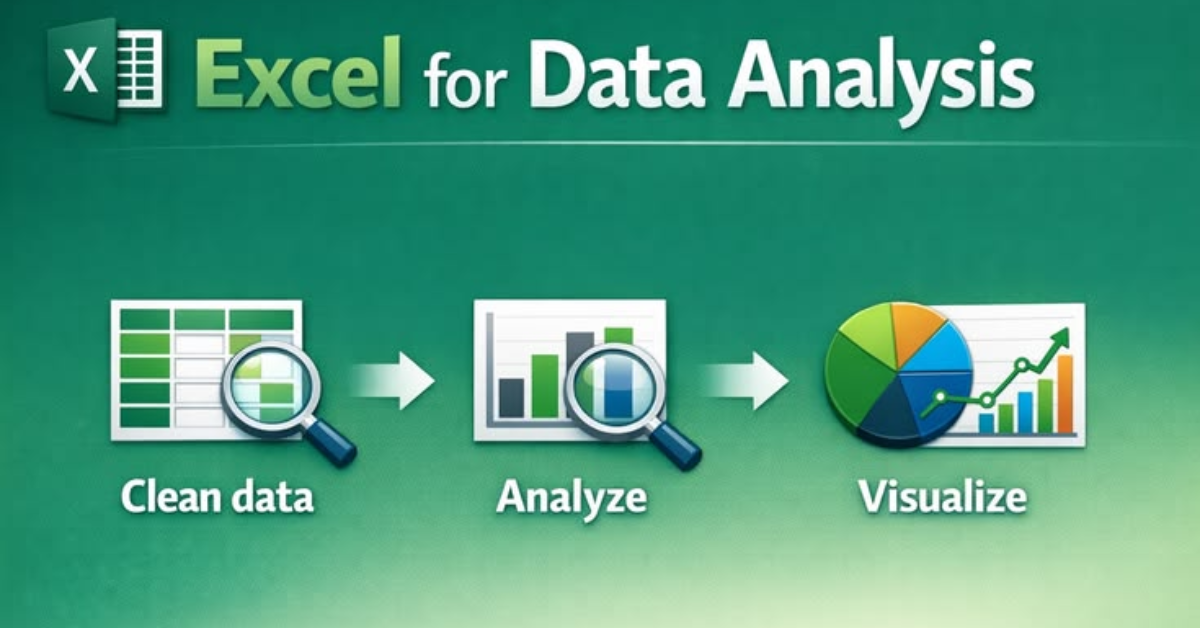
The process begins with importing or entering raw data into Excel in a clean and structured format. Next, you clean the data by removing duplicates, fixing errors, and ensuring consistency. After that, you apply Excel functions for calculations, use pivot tables to summarize information, and create charts for visualization. Finally, you analyze the results to identify trends and patterns that support decision-making.
Ideal Workflow from Raw Data → Insights
The ideal workflow starts with raw data collection, followed by data cleaning and structuring. Then comes analysis using formulas, pivot tables, and other tools. After analysis, data is visualized using charts and dashboards to make insights clearer. The final step is interpretation, where you turn these visuals and summaries into actionable business insights that help improve performance and decision-making.
Conclusion
Excel plays a crucial role in data analysis because it provides a simple yet powerful platform for organizing, processing, and interpreting data. From basic calculations to advanced tools like pivot tables and dashboards, Excel helps users turn raw information into meaningful insights that support better decision-making in business, marketing, and finance.
To truly master Excel data analysis, consistent practice is essential. Working with real datasets helps you understand how different tools and functions work in practical scenarios. The more you practice, the more confident you become in handling complex data and extracting useful insights.
Ultimately, building strong analytical skills takes time, patience, and hands-on experience. By regularly applying what you learn in Excel, you can develop the ability to analyze data effectively, identify trends, and make smarter, data-driven decisions in any field.
FAQs (Frequently Asked Questions)
1. What is Excel Data Analysis?
Excel data analysis is the process of organizing, interpreting, and visualizing data using Microsoft Excel to extract meaningful insights for decision-making.
2. Why is Excel important for data analysis?
Excel is important because it is easy to use, widely available, and powerful enough to handle tasks like calculations, reporting, and data visualization without advanced coding skills.
3. What are the basic Excel functions used in data analysis?
Common Excel functions include SUM, AVERAGE, COUNT, IF, VLOOKUP, and XLOOKUP, which help perform calculations and manage data efficiently.
4. What is a pivot table in Excel?
A pivot table is a tool that summarizes large datasets, allowing users to group, filter, and analyze data quickly without manual calculations.
5. What are Excel charts used for?
Excel charts are used to visualize data, making it easier to identify trends, patterns, and comparisons through bar, line, pie, and other chart types.
6. How do I clean data in Excel?
Data cleaning in Excel involves removing duplicates, fixing errors, standardizing formats, and ensuring consistency across the dataset before analysis.
7. What is data visualization in Excel?
Data visualization in Excel is the process of converting data into charts, graphs, and dashboards to make insights easier to understand.
8. Can Excel be used for professional data analysis?
Yes, Excel is widely used in professional environments for business reporting, financial analysis, marketing insights, and operational tracking.
9. What is the best way to learn Excel data analysis?
The best way is to practice with real datasets, follow step-by-step tutorials, and regularly use functions, pivot tables, and charts.
10. What skills are needed for Excel data analysis?
Key skills include data cleaning, formula usage, pivot table creation, chart building, and the ability to interpret data insights effectively.
You may also read this:
👉 Analytics Marketing Articles – Semrush Blog Category
👉 Analytics Mania – Google Tag Manager & Google Analytics Blog
👉 The 50 Best Marketing Blogs (2026 Edition) – Detailed.com
👉 Best Data Analytics Blogs to Follow in 2026 – BloggingJoy
👉 Analytics Vidhya Blog – Data Science, AI & Analytics Learning Hub
